Press-to-connect screening for forwarded calls
IVR call forwarding: a key press between the caller and your team
CallFlow's IVR is deliberately small: one spoken prompt and one required key press. A human caller barely notices the step; an auto-dialer playing a recording never gets past it, so it never rings your team, never reaches a buyer and never shows up as a missed call. It is switched on per campaign in the same dialog as your routing.
Free account · no subscription or contract · usage drawn from a prepaid wallet
- Free-text prompt per campaign, spoken to the caller as written
- One accepted digit, chosen by you; the prompt repeats if nothing is pressed
- Random digit on every call with the account-level IVR challenge
- Screened-out calls never ring a destination
- Runs ahead of tiers, weights, hours, caps and the hold queue
- No IVR hardware, call-flow builder or scripting
What the caller hears
A prompt, a key press, then normal forwarding
The IVR sits between the number and the campaign's routing. Only a correct key press hands the call on; everything else ends the call before any destination is rung.
Presses the right digit
The call enters routing immediately: priority tiers, weights, opening hours, caps, failover and the queue all apply as usual.
Presses nothing
The prompt repeats, up to three times, for a caller who hesitates. If no key ever arrives the call is disconnected. Nothing rang.
Presses the wrong digit
The call is disconnected straight away. There is no second chance, which is what stops dialers from cycling through the keys.
Setup
Two fields in the campaign dialog
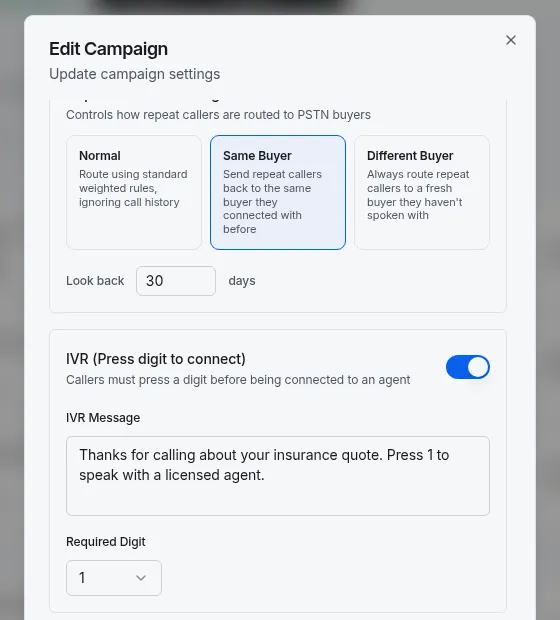
There is no separate IVR product to configure. Open the campaign, switch the IVR on, type the message, pick the digit and save. The next call to that campaign's numbers hears it.
- 1
Open the campaign
Edit the campaign whose numbers should be screened. Each campaign has its own prompt and digit.
- 2
Write the prompt
Plain text, spoken to the caller as written. Name the business and tell them which key to press.
- 3
Pick the digit
Choose the key a caller must press. Keep it to one digit, and avoid 1 if you suspect dialers already press it.
- 4
Optional: random digit
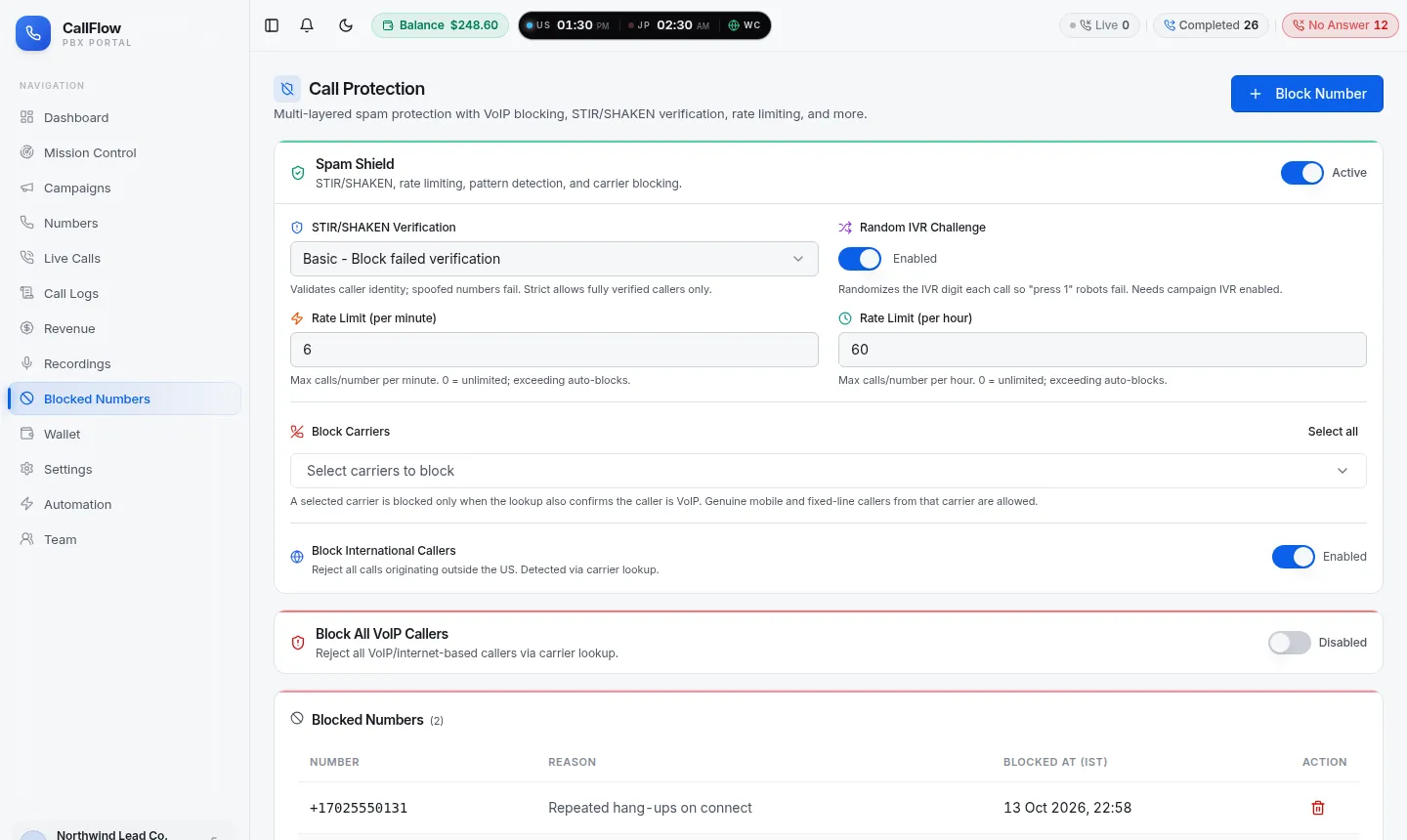
Turn on the Random IVR Challenge in Call Protection and every call asks for a different key.
Why a key press works
Machines cannot follow a spoken instruction
Toll-free numbers are dialled by machines at scale; a public number can be hit by thousands of auto-dialer calls in a single hour. Nearly all of them play a recording or wait for a voice. A required key press removes them without a block list, and it keeps working when the caller ID changes.
Auto-dialers and robocalls
A recording cannot hear the prompt or press a key. The call ends at the prompt, and no destination is rung or billed for the forwarding leg.
Dialers programmed to press 1
Some campaigns press 1 blindly. The Random IVR Challenge changes the required digit on every call and rewrites the prompt to match, so a fixed key press fails.
Layered with Call Protection
STIR/SHAKEN checks, per-caller rate limits and block lists run on the same account. The IVR catches what a block list cannot: a caller nobody has seen before.
Clean metrics downstream
Screened-out calls do not reach the dashboards as missed calls, so answer rates and buyer reports describe real callers.
Your words, your language
The prompt is free text per campaign. Keep it short, name the business and say the key; callers who meant to reach you press it without thinking.
Three chances, one key
The prompt repeats up to three times for a caller who hesitates, and the call ends for a dialer that only waits for a human, so no line is tied up.
Second by second
What a screened call looks like on the clock
A human presses the key while the prompt is still fresh and is ringing a destination within seconds. The forwarding leg, and the clock on it, only starts after the key press.
- 0 s – 6 sPrompt plays
- 6 s – 9 sWaiting for the key
- 9 sCaller presses 2
- 9 s – 21 sRings the chosen target
- 21 sAnswered
- 21 s – 45 sTalking (continues)
Prompt examples
Short prompts work best
One sentence that names you and one that says the key. Anything longer invites hang-ups from real callers and gives dialers more time to wait out the prompt.
Lead campaign for buyers
“Thanks for calling about your insurance quote. Press 2 to speak with a licensed agent.”
Names the offer so the caller knows they dialled the right number; the digit is anything but 1.
Business line with after-hours forwarding
“You have reached Northwind Plumbing. To be connected to the on-call technician, press 5.”
Keeps the night engineer's phone silent for every call that cannot press a key.
Support line behind a PBX
“Welcome to Northwind support. Press 3 and we will connect you to the next available agent.”
The key press happens before the call is handed to the PBX over SIP, so the PBX only ever sees screened calls.
Use it when
- The number is public: on a website, in ads, on a vehicle or a directory
- Calls are forwarded to paying buyers who dispute machine calls
- An on-call phone or a small team is being woken by robocalls
- You forward to a PBX and want it to see only real callers
- Answer-rate reports are skewed by calls nobody could have answered
Think twice when
- Callers may be dialling from devices without a keypad tone, such as some intercoms or legacy systems; they cannot pass the screen.
- You need a menu with several departments. The IVR accepts one digit; give each department its own number and campaign instead, which also separates their reporting. See intelligent call routing.
- The spam problem is a handful of known numbers. A block list entry in Call Protection is lighter than a prompt for every caller, and the two can be combined.
Getting the number in the first place is on the toll-free call forwarding page; keeping buyers happy on the pay-per-call tracking page.
FAQ
IVR call forwarding questions
What people ask before they put a key press in front of their callers.
What exactly does the IVR do?
It plays the message you type, waits for a single key press and forwards the call to your routing targets only if the caller pressed the digit you chose. If nothing is pressed the prompt repeats, up to three times; after that, or after a wrong key, the call is disconnected without ever ringing a phone.
Why screen calls with a key press at all?
Auto-dialers and robocall floods are the main source of wasted time on toll-free numbers, and a toll-free number can be hit by thousands of such calls in an hour. Most machines cannot respond to a spoken instruction, so a single required key press removes nearly all of them while a human caller barely notices the step.
What is the random IVR challenge?
An account-level option in Call Protection. When it is on, the required digit is picked at random for every call and the prompt is rewritten to ask for it, so a dialer that was programmed to press 1 is filtered out as well.
Can I use my own wording?
Yes. The prompt is free text per campaign and is spoken to the caller as written, so you can name the business, the offer or the department and keep the message short. Each campaign has its own prompt and digit.
Does the IVR work with queues, schedules and failover?
Yes. The IVR runs first and the call then enters normal routing: priority tiers, weights, opening hours, concurrent and daily caps, no-answer failover and the hold queue all apply to the screened call.
Can the IVR offer a menu with several departments?
Not yet. The IVR is a single-step screen: one prompt, one accepted digit. Businesses that need separate departments give each one its own number and campaign, which also gives each department its own reporting. Multi-option menus are on the roadmap.
Do screened-out calls cost anything?
Calls that never pass the prompt are not forwarded, so no routing target is rung and nothing is billed for the forwarding leg. They also do not appear as missed calls on your dashboards.
From the blog
Guides on ivr call forwarding
Longer reads from the CallFlow team on the same topic: setup walkthroughs, pitfalls and worked examples.
- IVR for business: setup, routing, and real examples
- How to block spam calls on business numbers without losing leads
- Call rate limiting for inbound voice: prevent floods and spam
- What is a toll-free number spam score?
- How SIP response codes reveal if your toll-free number is flagged as spam
- Business number showing as spam likely? Start here
More from CallFlow
The rest of the platform
Call Forwarding Portal
Numbers, campaigns, live calls, recordings, billing and team access in one signed-in portal.
OverviewToll-Free Call Forwarding
Pick an 800-series number and forward it to phones, SIP trunks or browser agents, with hours, caps and failover per destination.
Learn morePay-Per-Call Tracking
A tracking number per source, buyers with caps and weights, duplicate rules, buyer logins and reports that send themselves.
Learn moreIntelligent Call Routing
Priority tiers, weights scaled to live capacity, schedules, no-answer failover, a hold queue and routing that learns from answer rates.
Learn moreSee it with your own numbers
Open a free account and set up ivr call forwarding in a few minutes, or book a short demo and we will walk through your routing with you.